Simulating a UVC capture card
By Shank
A few of the programs I work on expect a video capture card. They look for a camera, open it, and do something with the frames. Checking that flow used to mean a physical card, a source on the other end of the cable. Most of the bugs I actually wanted to see were in the software: does it find the device, open it, and behave when the picture starts, changes, and stops.
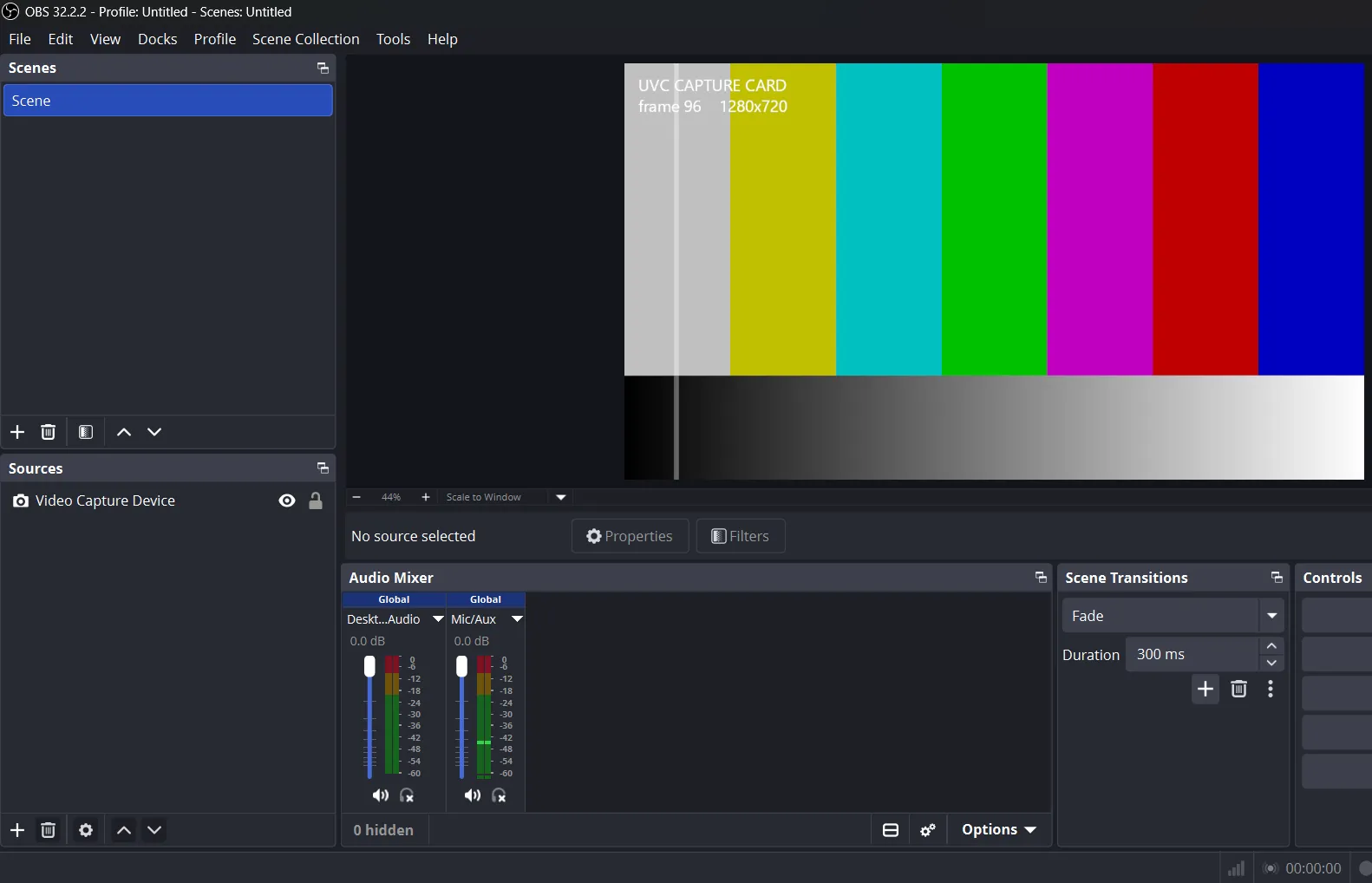
UVC Capture Sim is the simulator I built for that. You give it stills, a video file, or a generated test pattern, pick a resolution and a frame rate, and it publishes that picture as a camera named DirectShow Softcam. OBS, or any other program that opens cameras through DirectShow, sees a device and reads frames. The source of those frames is a playlist.
On hardware, the path is short. A picture source feeds the card, Windows lists a camera, and the capture application opens it.
flowchart LR
  Src[Picture source] --> Card[USB capture card] --> List[Camera list] --> App[Capture app]
The simulator keeps that last step and replaces everything in front of it.
flowchart LR
  Files[Playlist] --> Sim[UVC Capture Sim] --> Cam[DirectShow Softcam] --> App[Capture app]
The name says UVC because that is the kind of device the program under test thinks it opened. The simulator never puts a packet on a USB cable. It stops at the camera list, which is where those programs stop looking.
What a UVC capture card is
A USB device class is a standard job a device can have, webcam is the device people meet first. A USB capture card is the same class with a different job. Something outside the computer produces a picture: an HDMI camera, a scope, another PC. The card turns that picture into UVC traffic. Windows lists a new camera. The capture application opens that camera and shows the frames.
flowchart TD
  Picture[Picture source]
  Card[Capture card]
  Packets[UVC video on USB]
  Driver[Windows class driver]
  Cameras[Camera list]
  Consumer[OBS]

  Picture --> Card --> Packets --> Driver --> Cameras --> Consumer
The class driver on Windows is usbvideo.sys. A compliant device does not need a vendor driver for that basic path. On connect it hands Windows a set of descriptors: who made it, and which sizes, frame rates, and pixel layouts it can offer.
The formats on the wire are the usual camera formats. Uncompressed YUV, commonly YUY2 and NV12. Motion JPEG. On UVC 1.5, also H.264 and a few other compressed streams. USB 2.0 tops out at 480 Mbps, which is why a lot of older cameras compress before they send a frame. USB 3.0’s 5 Gbps is why a capture card can hand over HD without that step. e-con Systems’ overview walks through those bandwidths, and how USB compares with MIPI and GMSL, if you want the hardware side in more detail.
Words that show up around this path:
| Term | Meaning |
|---|---|
| USB device class | A standard role for a USB device. Video is one. Audio and storage are others. |
| UVC | The video class. Webcams and most USB capture cards use it. |
| Capture card | Hardware that takes an outside picture and presents it to the computer as a camera. |
| Class driver | The operating system’s built-in driver for that standard. On Windows, usbvideo.sys. |
| Descriptor | The small report the device gives the host: identity, and the formats and sizes it supports. |
| Frame | One complete picture. |
| Resolution | Width and height of that picture, such as 1280×720. |
| Frame rate | How many frames per second. 30 fps is a new picture about every 33 ms. |
| YUY2, NV12, MJPEG | Common ways a real UVC camera packs pixels. The simulator does not send these over USB. |
DirectShow is what the application opens
The capture application does not speak USB. Once Windows has a camera, the application asks for the list and then pulls frames. On Windows, the long-standing legacy way to do that is DirectShow. A lot of capture software still uses it, including OBS when you add a Video Capture Device.
DirectShow treats video as a pipeline of filters:
flowchart LR
  Source[Source filter: the camera]
  Convert[Transform filter: color or size]
  Render[Renderer: the preview]
  Source -->|pin| Convert -->|pin| Render
| Term | Meaning |
|---|---|
| Filter | One block in the pipeline. A camera is a source filter. |
| Pin | The connector on a filter. Frames leave through an output pin. |
| Media type | The contract on that pin: size, frame rate, and pixel layout. |
| Filter graph | The whole connected pipeline inside the capture application. |
| Sample | One frame package moving through the graph. |
| Video Input Device category | The DirectShow folder Windows treats as “cameras.” Its id is {860BB310-5D01-11D0-BD3B-00A0C911CE86}. |
| Friendly name | The text you see in the device list. For this library that text is DirectShow Softcam. |
| Moniker | The name DirectShow uses to find one device. A USB camera looks like @device:pnp:\\?\usb#.... A software camera looks like @device:sw:.... |
| COM | The Windows mechanism that loads the camera’s code into the capture application. |
| CLSID | The id of that camera filter. Softcam’s is {AEF3B972-5FA5-4647-9571-358EB472BC9E}. |
A real UVC camera becomes a DirectShow source because Windows puts a proxy in front of usbvideo.sys. softcam skips the cable and registers its own source in that same camera folder.
How softcam works
softcam, by tshino, is a small MIT-licensed library for a virtual webcam on Windows. It is one DLL with two jobs.
In the simulator it is a sender. scCreateCamera creates a shared picture buffer. scSendFrame copies the next image into it. In OBS it is the camera. Windows loads softcam.dll into the capture process, and that copy reads the same buffer.
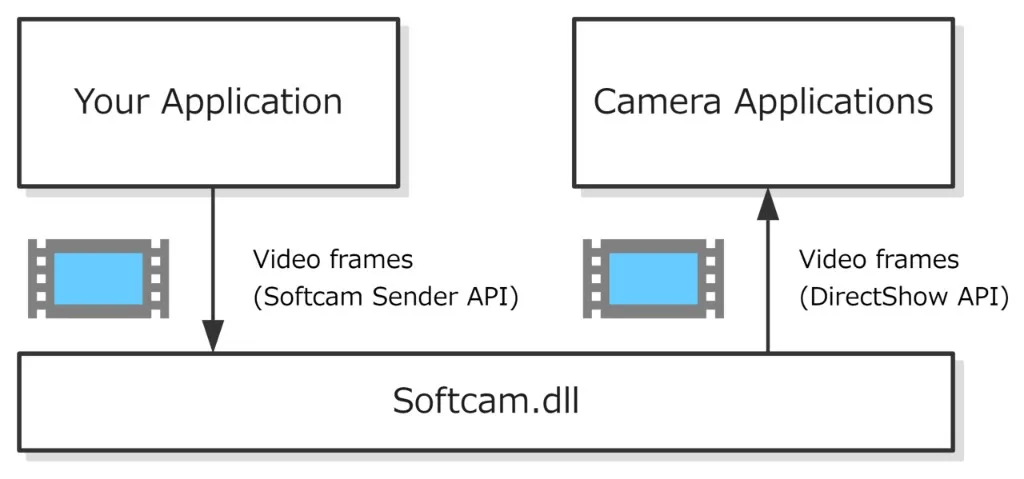
How softcam is split. Diagram from the softcam project.
The sender side is a handful of C functions:
scCamera cam = scCreateCamera(1280, 720, 30);
for (;;)
{
    uint8_t image[1280 * 720 * 3]; /* top-down BGR24 */
    DrawSomething(image);
    scSendFrame(cam, image);
}
scDeleteCamera(cam);
Under that API, scCreateCamera creates a named shared-memory region, DirectShow Softcam/SharedMemory, and writes the width, height, and frame rate into a header at the front of it. scSendFrame copies the pixels in behind that header. When a capture application opens the filter, the DLL maps the same region and reads whatever was written last.
sequenceDiagram
  participant Sim as UVC Capture Sim
  participant Mem as Shared memory in softcam
  participant App as Capture application
  Sim->>Mem: scCreateCamera 1280x720 at 30 fps
  App->>Mem: Open DirectShow Softcam
  loop Every frame
    Sim->>Mem: scSendFrame, BGR24 pixels
    App->>Mem: Read the latest frame
  end
  Sim->>Mem: scDeleteCamera
A few details matter when you actually use it.
Frames you send are top-down BGR24: blue, green, red, three bytes per pixel, packed with no padding. The filter offers the capture application a single media type, 24-bit RGB at the size and rate you passed to scCreateCamera. On the way out it flips the rows.
Width and height have to be multiples of 4, and no larger than 16384. Softcam rejects anything else. Sizes that are not a multiple of four tend to break color conversion later in someone else’s graph.
Only one sender can exist on the machine. The shared mapping has a fixed name, and creating it a second time fails. A second call to scCreateCamera returns null.
The filter can describe a format only while that mapping exists. Start the simulator, then refresh the camera list in the capture application. Until a sender is running, the filter has no format to offer.
Registration stores the DLL’s full path in the registry. It does not copy the file into System32. regsvr32 does the write, and it needs administrator rights. Build and register both the x64 and the Win32 DLL if a 32-bit capture application has to see the camera. The two DLLs share the same named memory, so a 64-bit sender can feed a 32-bit viewer.
There is no audio. Programs that ignore DirectShow and only use the newer Media Foundation camera path, such as the Windows Camera app, and often Zoom and Teams, may never list DirectShow Softcam. This project does not add a Media Foundation virtual camera.
What this simulator adds
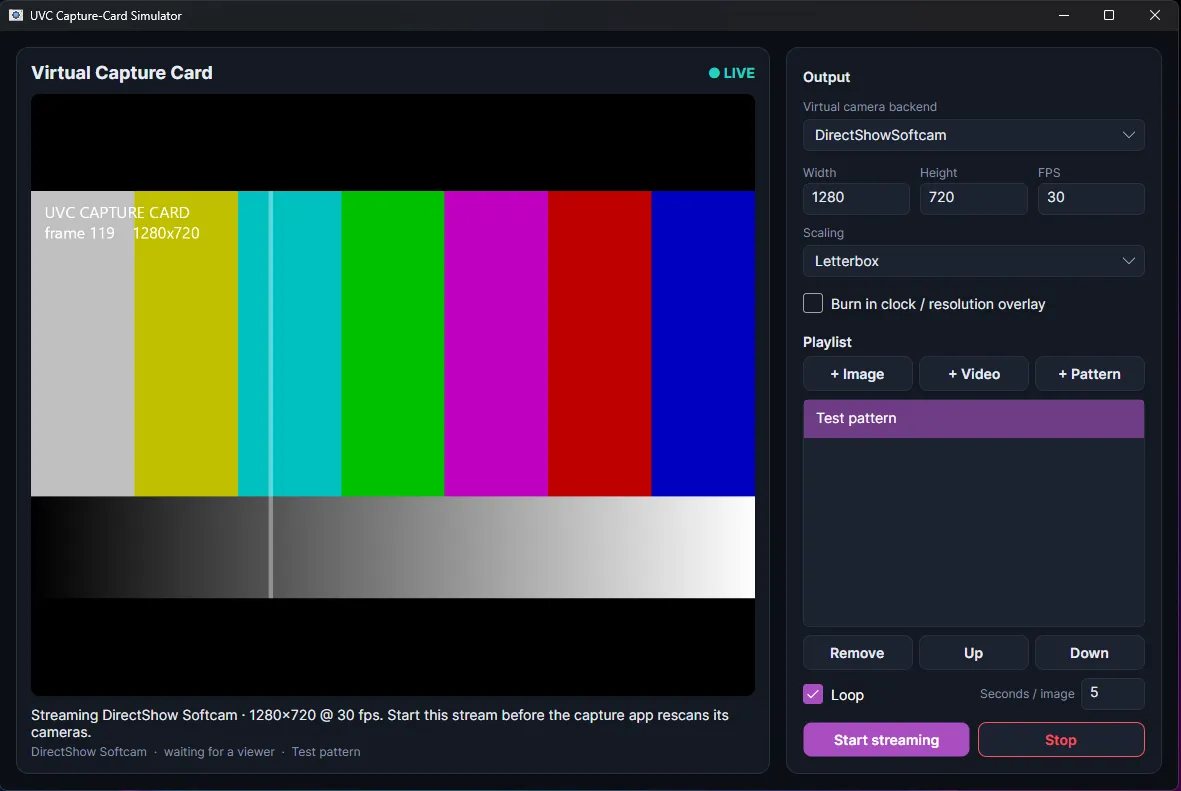
softcam gives you a camera and a function that accepts pixels. The application is the part that decides which pixels, at what size, and for how long etc.
It is a .NET 10 desktop app with an Avalonia window. The left side is a live preview of the frame about to be sent. The right side is the output: the virtual-camera backend, width, height, frame rate, how a source is fitted into that frame, and the playlist. You can add images, videos, and the built-in test pattern.
Each tick of the stream does the same work:
flowchart TD
  Playlist[Playlist: image, video, or test pattern]
  Pace[Wait one tick]
  Compose[Scale into the output size, optional overlay]
  Preview[In-app preview]
  Convert[BGRA pixels become BGR24]
  Send[scSendFrame]
  App[OBS or your capture app]

  Playlist --> Pace --> Compose
  Compose --> Preview
  Compose --> Convert --> Send --> App
The drawing surface is Skia, in BGRA: blue, green, red, and an alpha byte the camera does not want. Before the send, that alpha is dropped.
PixelConverter.Bgra8888ToBgr24(frame, _buffer);
SoftcamInterop.scSendFrame(_camera, pixels);
The P/Invoke surface is the C API, called cdecl from softcam.dll:
[LibraryImport("softcam.dll")]
internal static partial IntPtr scCreateCamera(int width, int height, float framerate);

[LibraryImport("softcam.dll")]
internal static partial void scSendFrame(IntPtr camera, IntPtr imageBits);

[LibraryImport("softcam.dll")]
internal static partial void scDeleteCamera(IntPtr camera);
scIsConnected is the fourth call. The status line uses it to say whether some other process currently has the camera open.
Width and height are rounded down to a multiple of 4 before the camera is created, with a floor of 4, so a typed-in size softcam would reject still produces a stream:
Width = Math.Max(4, config.Width & ~3);
Height = Math.Max(4, config.Height & ~3);
Scaling is one of three fits. Letterbox keeps the aspect ratio and pads with black. Crop keeps the aspect ratio, fills the frame, and cuts off the overflow. Stretch fills the frame and ignores the aspect ratio.
The optional overlay burns the clock, the size, the frame rate, and the backend name into the corner of every frame. When several tests are running, that text is how you know which stream you are looking at.
Video files are decoded with ffmpeg, paced with -re, into raw BGRA. Stills and the test pattern do not need ffmpeg. If ffmpeg or the file is missing, that playlist item ends immediately and the next one starts. With an empty list, the engine inserts the test pattern:
if (contents.Count == 0)
    contents.Add(new TestPatternContent(null));
The loop waits one frame period between pictures, so a 30 fps stream holds each composed frame for about 33 ms. softcam will also delay inside scSendFrame if a caller feeds it faster than the rate declared at scCreateCamera. This app paces on its own clock.
If softcam.dll is missing, the wrong architecture, or already owned by another sender, streaming continues on the in-app preview and the status line says why. Settings are written to uvcsim.config.json next to the executable when a stream starts.
Registering the camera
One time job, from src/UVCCaptureSim:
./tools/Install-Softcam.ps1 -RegisterThe script clones softcam if it is not already under native/softcam, builds Release x64 and Win32 with MSBuild, copies the x64 DLL next to the app, and registers both. Registration elevates. Remove it later with -Unregister.
That same step writes a DevicePath value of softcam-uvcsim under the DirectShow Softcam instance key. A USB camera receives a device path from Plug and Play. A software camera normally has none. OBS and ffmpeg do not care. Some DirectShow libraries do. FlashCap, which a lot of .NET capture code uses, drops any entry that has no DevicePath. The extra registry value keeps the camera in that list.
Then start streaming in the simulator, and only after that rescan cameras in the program you are testing. Pick DirectShow Softcam.
What you can exercise
| This is enough | A real capture card is still required |
|---|---|
| The device appears in the camera list | USB connect and disconnect |
| Open, preview, and close from OBS or your own app | UVC descriptors and USB bandwidth |
| Your own stills, clips, and a test pattern | A specific camera’s pixel format or firmware |
| Resolution, frame rate, and scaling | Cable, port, and driver problems |
| What the app does when the signal starts and stops | More than one virtual camera at once |
| A 32-bit viewer reading a 64-bit sender | Audio, or apps that only speak Media Foundation |
GitHub link: devshank3/UVC_CaptureSim.